


A local AI setup using llama.cpp and Open WebUI

A little over a year ago I set up a local LLM with the expectation that I would use it for all kinds of cool things. So far, it has just replaced the need for ChatGPT (chat) and Grammarly, which is a little disappointing. To be honest, I didn’t really have the mental bandwidth to learn more about the world of LLMs and improve the setup. And the few times I set about diving in, a fear that my consumer hardware (Nvidia RTX 3090 - 24Gb VRAM) was too weak for the models to deliver any useful results discouraged me from persisting.
But this time around, I think things are about to take a turn for the better.
At work, I’m not allowed to use AI - any AI, which in some ways is a relief. I dislike how AI is being used to mass-produce mediocre content, and I could probably write a book about it, but I wouldn’t be saying anything that hasn’t already been said - so I’ll spare you. The fact that AI can be used for cool stuff doesn’t negate the fact that it is also being extremely hyped. Last, but not least, I loathe how AI seems to be concentrated around a few big players. I fear that it could actually threaten a free democratic society.
So being able to run LLMs without lining Big Tech’s pockets makes my day. That naturally leads me to a blog post by Zetaphor that I read recently, Friends Don’t Let Friends Use Ollama, with this quote:
But the project has since spent years systematically obscuring where its actual technology comes from, misleading users about what they’re running, and drifting from the local-first mission that earned it trust in the first place. All while taking venture capital money.
Since I’m on that “local-first mission”, it was time to reevaluate my LLM setup. So when I got notified about a new Qwen 3.8 model, and it wasn’t available for Ollama yet, it gave me the kick I needed.
If you want pointers on how to set up Docker so it can access your GPU, see my previous AI post about Ollama.
Acquiring a model for llama.cpp
llama.cpp, being more lightweight than Ollama, requires a model before starting the server.
So before diving into a Docker Compose setup, I will show you how I settled on downloading models for llama.cpp. Since I’m running the LLMs on a server with an attached GPU, I want to download the models directly there.
-
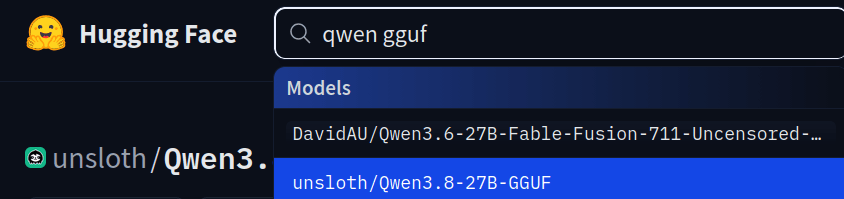
Find one of the GGUF models on Huggingface which llama.cpp supports out of the box.
-
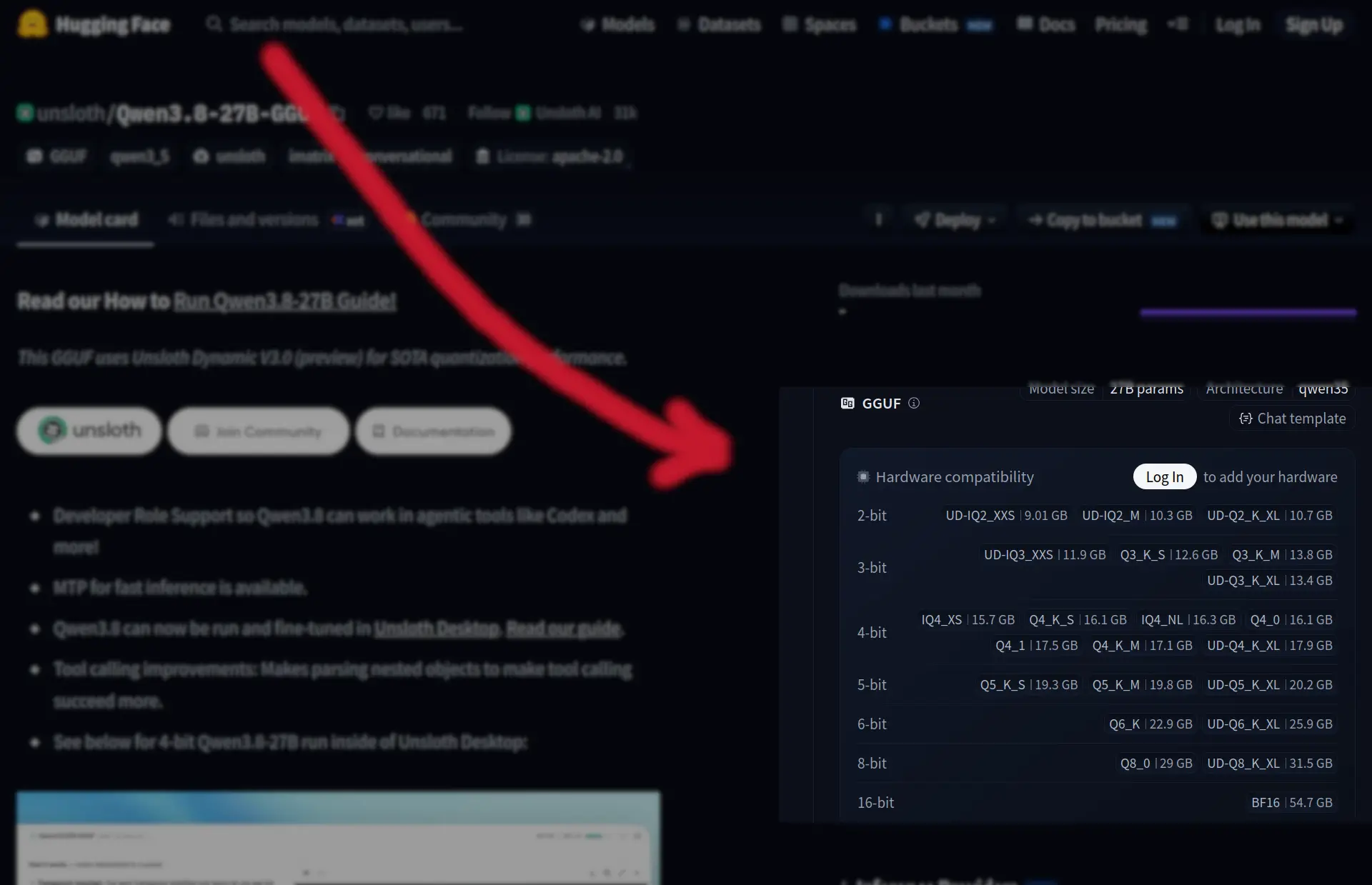
Choose a model quantization that matches your hardware.
-
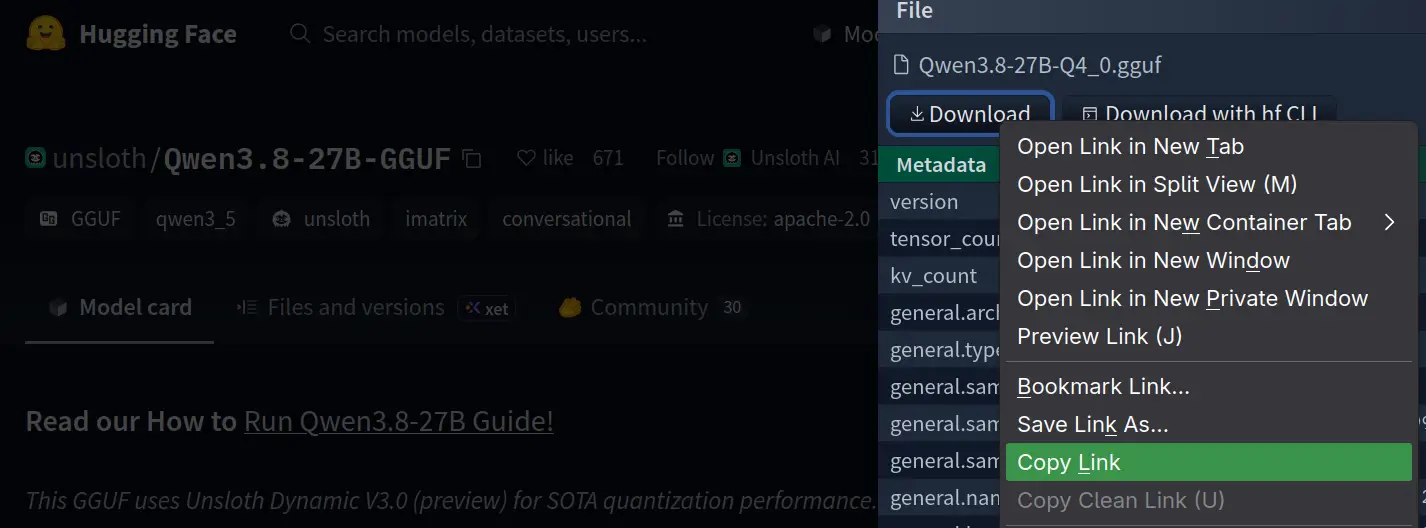
Right-click the download button and copy the link.
-
Paste the URL into the download command (i.e.
curl).
I usually SSH to the server and change into the directory where I want to place the model:cd /mnt/storage/gguf-models curl -L -O https://huggingface.co/unsloth/Qwen3.8-27B-GGUF/resolve/main/Qwen3.8-27B-Q4_0.gguf?download=true-Lfollows redirects (which the Huggingface download link uses), and-Oreuses the source filename for the destination file.
Now that I have obtained a model, I am ready to set up Docker Compose. Notice the directory where I have stored the model. You don’t have to use the same directory, but it needs to match your Docker Compose setup.
Setting up llama.cpp using Docker Compose
This is the docker-compose.yml configuration that I’m running with:
services:
  llamacpp-server:
    image: 'ghcr.io/ggml-org/llama.cpp:server-cuda'
    restart: unless-stopped
    ports:
      - '8081:8081'
    volumes:
      - '/mnt/storage/gguf-models:/models:ro'
    deploy:
      resources:
        reservations:
          devices:
            - capabilities: ["gpu"]
              driver: nvidia
              count: all
    command:
      - '--models-dir'
      - '/models'
      - '--port'
      - '8081'
      - '--host'
      - '0.0.0.0'
  open-webui:
    image: 'ghcr.io/open-webui/open-webui:main'
    restart: unless-stopped
    ports:
      - '3000:8080'
    volumes:
      - 'open-webui:/app/backend/data'
Since I’m downloading the models for llama.cpp manually, I’ve chosen to mount the directory as read-only for better security.
I recommend playing around with the built-in web UI (chat) feature of llama.cpp. If for no other reason, at least check that the server has picked up the downloaded model before moving on to the Open WebUI integration. While putting the finishing touches on this blog post, I found this writeup on Model management in llama.cpp, which describes some configuration details that I’m sure I will need for fine-tuning my setup in the weeks to come.
The reason I use Open WebUI instead of the built-in UI in llama.cpp is to get support for multiple users. Now, follow Open WebUI’s official documentation describing how to set up a connection to llama.cpp. If you find yourself in a situation where no models show up, just know that I have been there, together with at least one other user on StackOverflow. Make sure you configure the connection under “Admin settings” (not “Personal settings”), where you can actually set the Provider to llama.cpp under Advanced. I also experienced all the models vanishing from Open WebUI after a llama.cpp restart using --models-dir to scan for models instead of specifying a specific one with --model. After frantically enabling, disabling, removing, and recreating connections in Open WebUI for both Ollama and llama.cpp (OpenAI API), it suddenly worked again. Sadly, I’m not entirely sure what the problem was and exactly how/when I solved it.
Regardless of these initial issues, the entire setup feels more sturdy and snappy. My 5-minute test using ECA (Editor Code Assistant) in VS Code using llama.cpp proved far superior to previous similar attempts using Ollama. I’m beginning to believe that this could actually work.